Reports Redesign


Role
Product Designer
Team
1 PD, 1 PM, 2 engineers
Timeline
Dec'23-Mar'24
Overview
What is the Reports Page?
Every time a teacher runs a quiz on Wayground, they come to one place to see how their class performed: the reports page.
It shows who participated, how they scored, which questions were hardest, and whether students are improving. It's the single most visited page in the product
Teacher creates a quiz
Student attempt it
Reports page
Teachers decides what to do next
Teachers land here with a few questions in mind:

How did my class do overall?
Which students need help?
Which questions were hardest?
Are students improving over time?
It wasn't answering any of them well.
This is the page today. What follows is how it got here
What Was Broken
The numbers told the story before we dug in:
1000s
support tickets per month
60%
teacher satisfaction
2%
explored question-level insights
We audited the page, analyzed support ticket patterns, and spoke with teachers. A few problems kept surfacing:
Wrong information hierarchy
The invite section dominated the viewport. Performance data was below the fold.
One visualization for all question types
A bar graph built for MCQs was forced onto reorder, match, drag-and-drop, and 14 more types.
Binary correctness
Question types evolved to support partial credit. The reports page still flattened everything to 0 or 1.
No growth visibility
90% after five retries looked identical to 90% on the first try.
Here's how we approached each one.
The Fix
PAGE HIERARCHY
By the time I open the report, everyone's already in. I don't need the sharing options taking up the whole screen.
Support ticket
AFTER

Refreshed look and feel
Cleaned up the visual language across the reports page. Tighter spacing, clearer content hierarchy, and a more modern layout without breaking existing teacher workflows.
Expanded when it matters
No students have joined yet. The teacher's primary goal right now is getting students into the quiz, so we give this section full visibility.

Smart collapse at 10% joined
Once 10% of the class joins, we assume the teacher has shared instructions and collapse the invite section automatically. Stats and tabs become visible without scrolling. When the quiz ends, the section is removed entirely - full viewport back to performance data.
BEFORE

Already joined, still showing
The invite flow has no sense of timing. Once students join, this section becomes dead weight, but it never steps aside. The viewport stays locked on a completed task.
The actual report, buried
Accuracy stats, question breakdown, and participant data are all pushed below the fold. Teachers have to scroll past irrelevant content to find what they came for.
The reports page had everything teachers needed. It just showed it in the wrong order. The teacher's real question when landing here is: "How did my class do?" That answer was below the fold.
The old design showed the same join code regardless of how the quiz was assigned. We needed the invite section to adapt based on assignment type and class structure.
010 101
Via code
Join code + link sharing


Via LMS
Google classroom, Canvas, Schoology, single + multi-class

Via Quizizz class
Our own class management system
Error states
Assignment failures + recovery flows
40+
unique states designed for just the invite section, across all assignment types and breakpoints


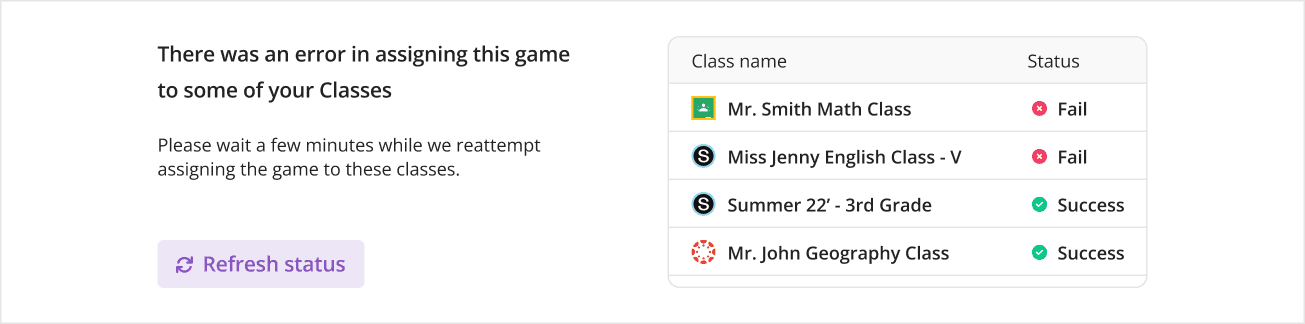
The page looks simpler. The design file behind it is anything but.
Performance first, logistics second
The reports page didn't need more features. It needed better design judgment. Knowing what to surface, what to collapse, and what to rethink entirely. Here's how we approached each problem.
QUESTION VISUALIZATIONS
The question breakdown doesn't make sense for anything that isn't multiple choice. I just skip it.
Teacher interview
Why one graph couldn't serve them all
The old MCQ visualization made sense for MCQs. Each option maps to a bar. Green for correct, red for incorrect. The teacher sees which wrong answer trapped the most students. Clear and useful.

Now look at what happens when you force the same graph onto a reorder question. The question asks students to sort numbers from low to high. The possible outcomes are: got the full sequence right, got it partially right, got it all wrong, or didn't attempt it. But the old graph shows a, b, c, d, e with identical bars. What is "a"? What is "b"? A teacher looking at this learns nothing.

Drag-and-drop had a different problem. The graph showed how many students filled each answer into at least one blank, but not whether they put it in the right one. A teacher could see that 8 students entered 'Nile' somewhere, but had no idea if they placed it in the correct blank.

Different questions, different teacher needs
The core insight was simple: each question type answers a different teacher question.
MCQ
"Which wrong option trapped the most students?"
Reorder
"Did they get the sequence right?"
Match
"Did they pair items correctly?"
Drag and Drop
"Which blanks did they get right?"
Here's how we redesigned each one.
MCQ
The MCQ visualization wasn't broken, but it lacked context. We used it as the starting point to define a system that would work across every question type.

Type-specific detail
This part changes based on the question type. For MCQs, it shows which option each student picked. For reorder, it becomes the correct sequence. For match, the correct pairs.
Common across all question types
Correct, incorrect, and unattempted counts. This pattern stays consistent whether it's MCQ, reorder, match, or any other type
At a glance
Question type, points, accuracy, and avg time. Teachers can scan without reading the full question.
Reorder & Match
Instead of meaningless option bars, reorder shows the correct sequence and match shows the correct pairs. Teachers can immediately see the expected answer structure alongside the 4-level performance breakdown.


Drag and Drop & Fill in the Blank
For drag-and-drop, teachers need to see which specific blank students struggled with. For fill-in-the-blank, they need to see which accepted answers students actually wrote. Each visualization now surfaces that detail.


Graphing & Hotspot
Some question types are inherently visual. Graphing shows the actual plotted curve. Hotspot shows the target area on the image. The visualization matches the question's nature.


17+ question types, one scalable system
Every question type gets its own visualization shaped by what teachers need to see, while sharing a consistent summary breakdown on the right. The system scales as Quizizz adds more question types without needing a new design pattern each time.
MCQ
MSQ
Reorder
Match
Fill in the Blanks
Drag and Drop
Dropdown
Dropdown
Math Response
Graphing
Hotspot
Labelling
Classification
Draw
Open Ended
Video Response
Audio Response
Poll
MASTERY MODE GROWTH
If a student retries and gets 90%, it looks the same as a student who nailed it first try. That's misleading."
Teacher interview
Accuracy alone wasn't the right metric

The growth arrows tell the story instantly. Jerome understood the material early. Cody improved dramatically through practice. Savannah needs a different kind of help - retries alone aren't working for her. That's the kind of insight a teacher can act on tomorrow morning.
SMALL WINS
Details matter. It’s worth waiting to get it right.
Jony Ive
Not every fix needs a deep dive. Some small changes had outsized impact.
Sticky tabs
As teachers scrolled into the participant table, the tab bar scrolled out of view. Switching to Questions or Overview meant scrolling all the way back up. Most teachers never did.
Making the tab bar sticky kept every section one click away, regardless of scroll position.
2%
20%
question tab click rate after making tabs sticky

Pinning the tab bar significantly increased tab usage.
Overview heatmap
Teachers used to check students one by one to find patterns. The overview tab shows the entire class as a heatmap - each tile is one student's answer to one question. A column of red means a question needs reteaching. A row of grey means a student disengaged. Patterns that took minutes to find now take seconds.

Most students struggled with Question 8, visible as a column of red.
Participant row
The old row showed only correct or incorrect. The new row adapts to answer states, student context, and quiz length.

Multiple answer states instead of binary grading.

Shows progress toward mastery instead of just score.

Flags disengaged students in real time.

For quizzes with 25+ questions, pills collapse into a progress bar.

Rows adapt when a student has not joined the activity.
Impact
~0
support tickets/month
down from thousands previously
80%
teacher satisfaction
up from 60%
10x
report tab exploration
beyond Participants
Stats are cool. Student reactions are better:
What Stuck With Me
Redesigning a live product used by millions is a different challenge than building from scratch. You can't throw everything away because teachers have muscle memory. But you can't just polish either, because the foundation has problems. The skill is knowing what to restructure, what to evolve, and what to leave alone.